My next step after establishing the discover page and design direction was to create two of the other main pages accessible from the navigational menu in the footer – the ‘Events’ and ‘Calendar’ pages.
Events
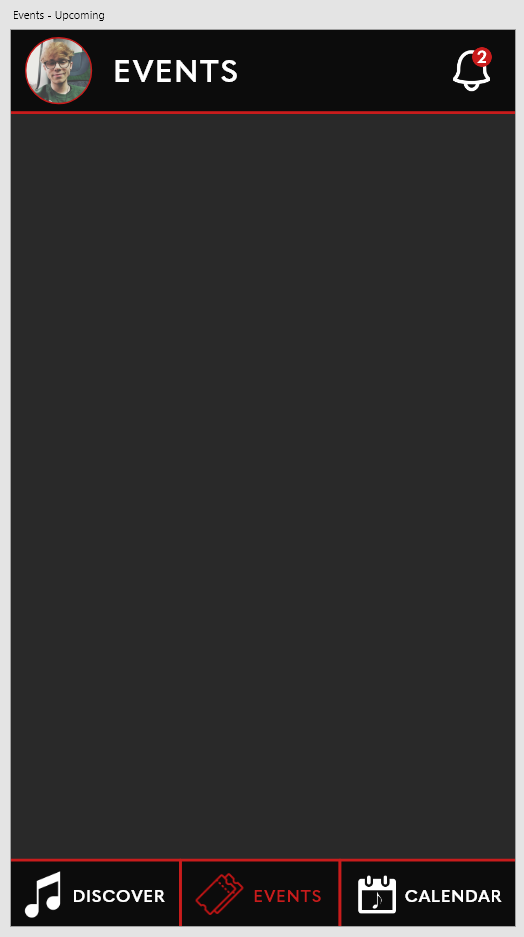
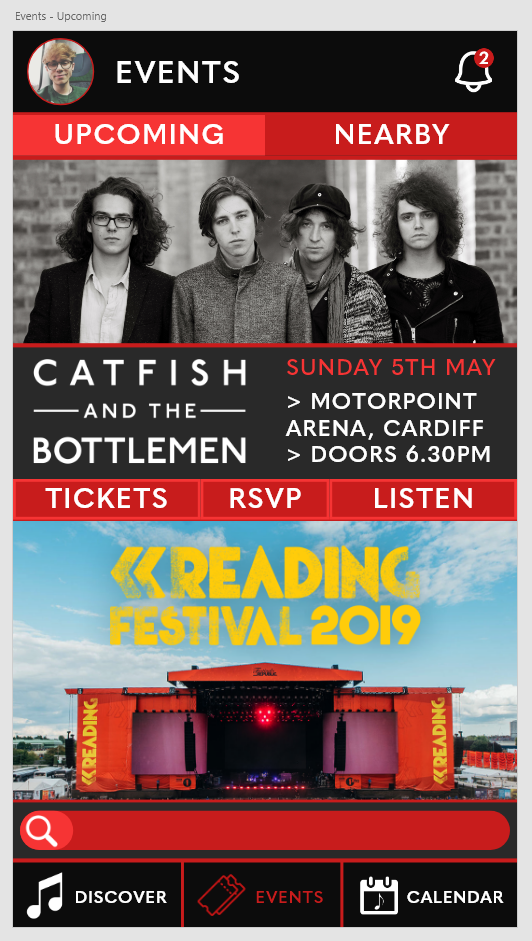
To start off the events page, I copied over what I had done with the Discover page and removed most of the elements there, rebranding it to an events page.
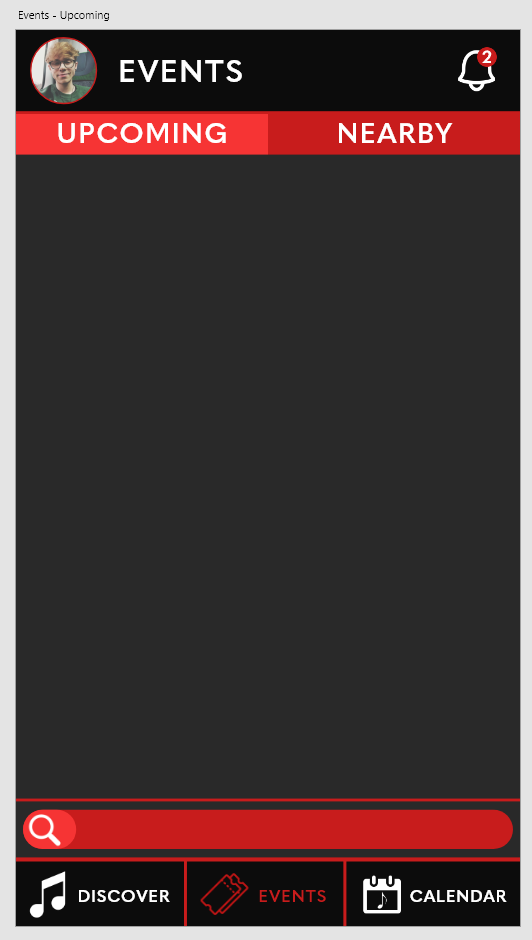
I then added a search bar above the footer, theoretically allowing the user to search for events they had in mind. Similarly, I added an ‘Upcoming’ and ‘Nearby’ section to the header, allowing the user to view their upcoming events and events that were nearby to their location.
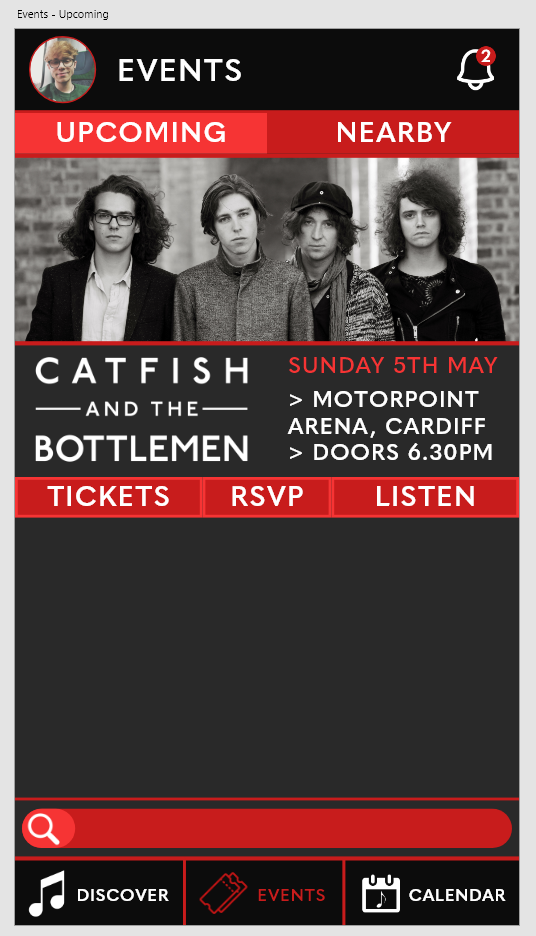
I then added the first event to the page – a real gig in Cardiff that showed the event’s name, venue and date, as well as the option to respond to the event, listen to the artist’s music and buy tickets to the event.
Calendar
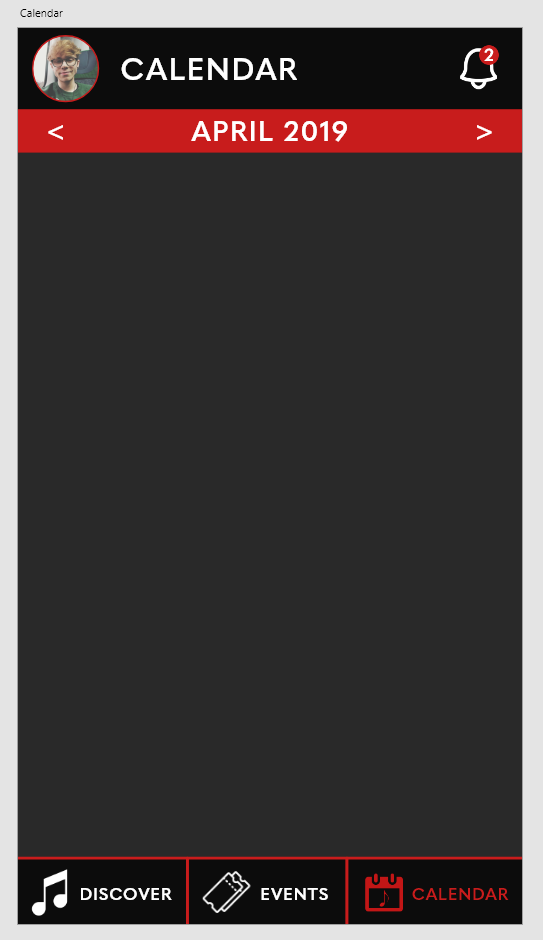
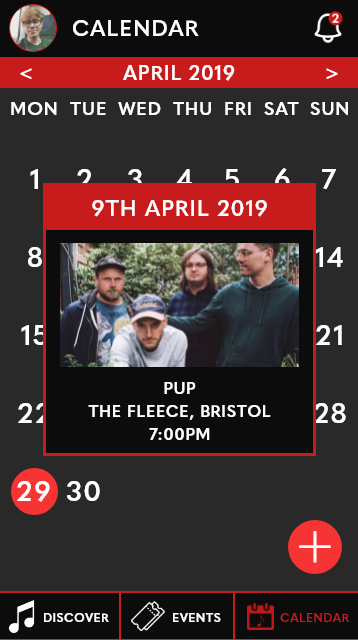
Once again, I copied an unedited version of the Discover page and altered the iconography colour and label to identify the calendar screen. I also added the month and year underneath the header to allow the user to select which month they wish to view events for.
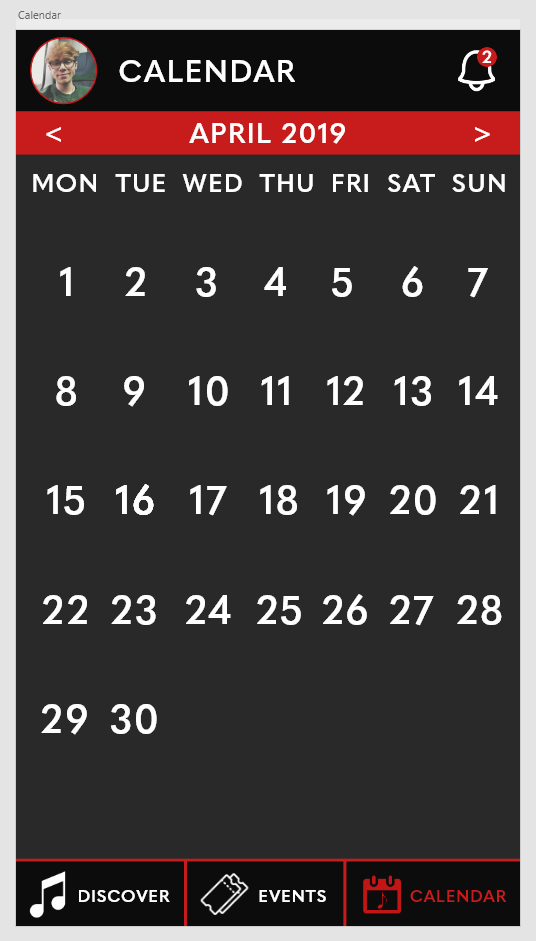
I then added the days of the week and the dates correlating to them in a typical calendar format, inspired by the simplistic nature of many in-built calendar apps on iOS and Android.
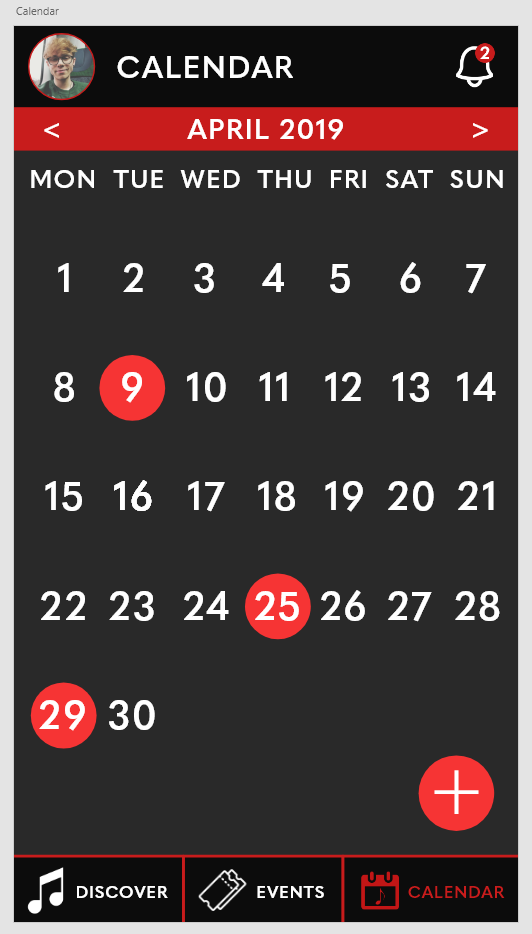
I then added a few visual elements to indicate events – highlighting days with events with red dots. I also added a visual indicator to invite the user to create their own event and add it to the calendar.

I decided to go a little further on this step and add a small event window that would pop-up once a day with an event was clicked on, appearing as an overlay over the top of the calendar app detailing some key information about the event.
 BA (Hons) Graphic Communication - Journal